INSTALLING ENIGMA2 USING SPARK PLUGIN IN AMIKO ALIEN/ALIEN 2
Upgrade Enigma2 by USB
Preparation:
1.We only recommend Kingston USB stick, we don’t support USB hard disk, you can try another usb stick.
2.Please make sure your USB stick only have 1 partition and the file system is FAT32
3.Set default booting system to [enigma2].
Upgrade Step:
1.Make sure [C:/engima2] is exist, if not, please create this folder.
2.copy [uImage] and [e2jffs2.img] to [C:/engima2]
3.Connect USB stick to STB
4.Keep Pressing [OK] Button in Front Panel, then power on STB.
5.After 5 seconds, you will see [Forc] in LED, release [OK] button and press [Right] Button.
6.if everything OK, You will see [U LD] shining in LED
7.if upgrade success, You will see [SUCC] and STB reboot automatically
If upgrade not finishes in 5 minutes, then there must be something wrong, please check your configuration and re-try.

Thursday, 9 August 2012

Wednesday, 18 July 2012
How to forward CSP profiles cache to Oscam or MCS.
How to forward CSP profiles cache to Oscam or MCS.
How to forward CSP profiles cache to Oscam or MCS.
On CacheCoveragePlugin :
1- Forward to Oscam
2- Forward to MCS
Enjoy ... by Shatanar
How to forward CSP profiles cache to Oscam or MCS.
On CacheCoveragePlugin :
1- Forward to Oscam
<cache-forwarder name="oscam" type="udp" enabled="true">
<host>127.0.0.1</host>
<port>xxxx</port> <!-- where xxx is your Oscam cache port -->
<send-locks>true</send-locks>
<hide-names>false</hide-names>
<profiles>0002-0963</profiles> <!-- black for all profiles or you can write specfic profile name , here we set to sly uk profile -->
</cache-forwarder>
<host>127.0.0.1</host>
<port>xxxx</port> <!-- where xxx is your Oscam cache port -->
<send-locks>true</send-locks>
<hide-names>false</hide-names>
<profiles>0002-0963</profiles> <!-- black for all profiles or you can write specfic profile name , here we set to sly uk profile -->
</cache-forwarder>
<cache-forwarder name="Multics" type="udp" enabled="true">
<host>127.0.0.1</host>
<port>xxxx</port> <!-- where xxxx is your MCS cache port -->
<send-locks>true</send-locks>
<hide-names>false</hide-names>
<profiles></profiles> <!-- black for all profiles or you can write specfic profile name -->
</cache-forwarder>
<host>127.0.0.1</host>
<port>xxxx</port> <!-- where xxxx is your MCS cache port -->
<send-locks>true</send-locks>
<hide-names>false</hide-names>
<profiles></profiles> <!-- black for all profiles or you can write specfic profile name -->
</cache-forwarder>
How to secure (encrypt) CSP connectors & user xml
How to secure (encrypt) CSP connectors & user xml
The connectors.xml &users.xml can be stored anywhere, as long as it can be accessed via url (e.g file://, http, https, ftp). Optionally, the list can also be blowfish encrypted using the included tool fishenc.jar (found in lib, java -jar fishenc.jar). If encrypted, tracker-key must be correctly set.
In the below example we are going to encypt connectors.xml & users.xml
Using any ftp program copy the files connectors.xml & users.xml to a different PC rather than your CSP server, then delete the files connectors.xml & users.xml from your CSP server.
Finally update your proxy.xml with:
and
Enjoy..
By Shatanar
The connectors.xml &users.xml can be stored anywhere, as long as it can be accessed via url (e.g file://, http, https, ftp). Optionally, the list can also be blowfish encrypted using the included tool fishenc.jar (found in lib, java -jar fishenc.jar). If encrypted, tracker-key must be correctly set.
In the below example we are going to encypt connectors.xml & users.xml
cd /usr/local/csp/lib
java -jar fishenc.jar /usr/local/csp/config/connectors.xml /usr/local/csp/config/connector.enc 12345 <!-- where 12345 is your tracker key - (password) -->
java -jar fishenc.jar /usr/local/csp/config/users.xml /usr/local/csp/config/users.enc 12345 <!-- where 12345 is your tracker key - (password) -->
java -jar fishenc.jar /usr/local/csp/config/connectors.xml /usr/local/csp/config/connector.enc 12345 <!-- where 12345 is your tracker key - (password) -->
java -jar fishenc.jar /usr/local/csp/config/users.xml /usr/local/csp/config/users.enc 12345 <!-- where 12345 is your tracker key - (password) -->
Finally update your proxy.xml with:
<user-source name="localusers">
<user-file-url>file:///usr/local/csp/config/users.enc</user-file-url>
<user-file-key>12345</user-file-key>
<user-file-url>file:///usr/local/csp/config/users.enc</user-file-url>
<user-file-key>12345</user-file-key>
<connector-file-url>file:///usr/local/csp/config/connector.enc</connector-file-url>
<connector-file-key>12345</connector-file-key>
<connector-file-key>12345</connector-file-key>
By Shatanar
HOWTO: Compile OSCAM on Raspberry Pi, Dockstar or similar NAS running Debian
HOWTO: Compile OSCAM on Raspberry Pi, Dockstar or similar NAS running Debian
1. Preparations:
Update apt-list and install required packes:
If you need PCSC support:
2. Get OSCAM source
Now switch to /usr/src, create a directory for oscam and download sources:
3. Compile OSCAM
Now compile oscam for your machine:
NOTE: If you get Errors while compiling e.g.
See the hint at the bottom before proceeding
Now we got our oscam binary
We're gonna move it to /var/local
there should be a file called "oscam"
So lets copy it:
4. Make OSCAM start at system startup:
We're adding oscam to rc.local to make it start at system boot.
Now add
right above line
Oscam will start everytime the system boots up from now on
5. configs and logfiles
We still need to get some config files.
By default oscam looks in /usr/local/etc for these file
There should be at least 3 files: oscam.user, oscam.server, oscam.conf
If not, copy your configs here
Now we need to create some logfiles and make them writable:
Thats it
6. Start oscam
You can now run oscam to check if it works
HINT: Oscam compile error: No smartreader support:
If you get Errors while compiling e.g.
go to /usr/src, get libusb 1.0.6 from sourceforge and compile for your system:
After make install of libusb, start over with compiling oscam
1. Preparations:
Update apt-list and install required packes:
Code:
apt-get update
apt-get -y install apt-utils dialog usbutils
apt-get -y install gcc g++ wget
apt-get -y install build-essential subversion libpcsclite1 libpcsclite-dev
apt-get -y install libssl-dev cmake make
apt-get -y install libusb-1.0-0-dev nano
If you need PCSC support:
Code:
apt-get install pcscd pcsc-tools
2. Get OSCAM source
Now switch to /usr/src, create a directory for oscam and download sources:
Code:
cd /usr/src
svn co http://www.oscam.to/svn/oscam/trunk oscam-svn
3. Compile OSCAM
Now compile oscam for your machine:
Code:
cd oscam-svn
mkdir build
chmod 755 build
cd build
cmake -DWEBIF=1 .. (those 2 dots are required. THIS IS IMPORTANT)
make
NOTE: If you get Errors while compiling e.g.
Code:
-- no libusb 1.0 found. No smartreader support
Now we got our oscam binary
We're gonna move it to /var/local
Code:
cd /usr/src/oscam-svn/build
ls
So lets copy it:
Code:
cp oscam /var/local/
cd /var/local
chmod 755 oscam
4. Make OSCAM start at system startup:
We're adding oscam to rc.local to make it start at system boot.
Code:
nano /etc/rc.local
Code:
/var/local/oscam &
Code:
exit 0
5. configs and logfiles
We still need to get some config files.
By default oscam looks in /usr/local/etc for these file
Code:
cd /usr/local/etc
ls
If not, copy your configs here
Now we need to create some logfiles and make them writable:
Code:
cd /var/local
mkdir oscam
chmod 755 oscam
cd oscam
mkdir cw
chmod 755 cw
nano oscamuser.log (enter a space and save file)
nano oscam.log (enter a space and save file)
chmod 755 oscamuser.log
chmod755 oscam.log
6. Start oscam
You can now run oscam to check if it works
Code:
cd /var/local
./oscam
HINT: Oscam compile error: No smartreader support:
If you get Errors while compiling e.g.
Code:
-- no libusb 1.0 found. No smartreader support
Code:
cd /usr/src/
mkdir libusb
chmod 755 libusb
cd libusb
wget http://downloads.sourceforge.net/project/libusb/libusb-1.0/libusb-1.0.6/libusb-1.0.6.tar.bz2
tar xjf libusb-1.0.6.tar.bz2
make
install
Sunday, 15 July 2012
Tuesday, 10 July 2012
Useful Ubuntu OScam CCcam Commands
Useful Ubuntu OScam CCcam Commands
Ubuntu System Commands
Power Commands
Shutdown computer
reboot computerCode:sudo shutdown -h now
orCode:sudo reboot
Network ConfigurationCode:sudo shutdown -r 0
Open network configuration file
Restart the network:Code:sudo nano /etc/network/interfaces
UpdatesCode:sudo /etc/init.d/networking restart
Get update software list, enter:
Update software(s) i.e. apply updates:Code:sudo apt-get update
Apply kernel upgrade:Code:sudo apt-get upgrade
Upgrade individual software called foo type command:Code:sudo apt-get dist-upgrade
PingCode:sudo apt-get install foo
CleanCode:Ping –c3 www.google.ie
To clear the cache you can use either the clean or the auto-clean op for a command-line program called apt-get. The clean command will remove every single cached item, while the auto-clean command only removes cached items that can no longer be downloaded (these items are often unnecessary).
List Devices attached:Code:sudo apt-get clean
Checking open ports on UbuntuCode:sudo lsusb
Enable root accountCode:netstat -anltp | grep "LISTEN"
Chmod for a folder and all of its subfolders and files?Code:sudo passwd root
Code:sudo chmod 755 -R /whatever/your/directory/is
Oscam/Cccam commands
Update cccam.cfg file?
ftp updated cccam.cfg file to /var/config then run command below:
Stop oscam:Code:/var/script/configupdate.sh
Start oscam:Code:sudo killall -9 oscam
Log file:Code:sudo oscam –b
Edit oscam.server:Code:tail -f /var/log/oscam.log
Edit oscam.user:Code:sudo pico /usr/local/etc/oscam.server
Edit oscam.conf:Code:sudo pico /usr/local/etc/oscam.user
Update CCcam Channel InfoCode:sudo pico /usr/local/etc/oscam.conf
Update CCcam ProvidersCode:wget -O /var/etc/CCcam.channelinfo http://tinyurl.com/csmcu44
Clean oscam/cccam Log FilesCode:wget -O /var/etc/CCcam.providers http://tinyurl.com/cgo8ogc
Code:/var/script/LogCleanup.sh
Friday, 6 July 2012
Alternative method to backup Linux Ubuntu / Debian Server in 5 Easy Steps
Alternative method to backup Linux Ubuntu / Debian Server in 5 Easy Steps.
From time to time you might want to make big changes to your server, changes that might involve risking server stability. You might also want try another Operating System (Switch from Debian to Ubuntu or vice versa) or upgrade from 32Bit OS to 64 Bit OS. Most of these tasks involve the risk of big downtime. I am going to outline a few simple steps to keep downtime to an absolute minimum no matter how big the Upgrade or problem. This Tutorial might seem a bit long winded but it is aimed at the complete novice. After you have done this once, the whole process will take no more than 5 minutes.
Tools you will Need:
a)…Hiren’s Boot DVD 15.1 Restored Edition V 2.0 (Not the genuine version)
Click on the link below to open up a google search window with results for the Torrent file we need (If you wish, you can change “KAT” at the end to your preferred torrent site)
Google
Make sure it is the restored edition, this edition includes all the commercial software that you don’t get with the official Hiren’s Boot DVD.
b)… Blank DVD
c)… USB Key or portable Hard Drive to store the Backup’s on. (I use 8GB USB Key)
Step 1 (Burning the DVD)
Within the folder you will find the “hbcd-15.1-Restored-V2.0-dvd-proteus.iso”. Insert your Blank DVD & burn this iso to a blank DVD with your favourite DVD burning software. (I use windows Disk burner included in Win7, Just right click on the file & click burn disk image) You now have your Hirens Boot DVD.
Step 2 (Creating the backup)
For this step you will need a keyboard, mouse & monitor connected to your Server.
a)… Put the DVD into your server & click CTR+ALT+DEL to restart Server
b)… Press F12 at boot logo Screen to select Boot Device (Might be different on different Systems)
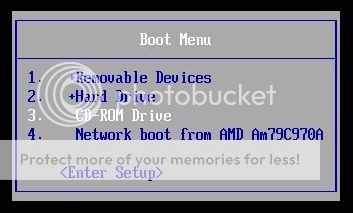
c)… From Boot Device Menu Select CD\DVD Drive & hit enter (This will boot your server from the DVD)
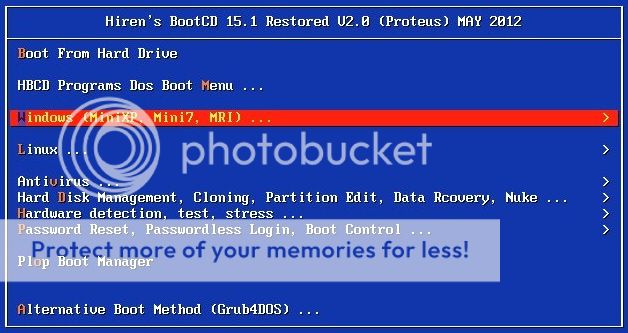
d)… From the first screen, select Windows (Mini-XP, Mini7, MRI)
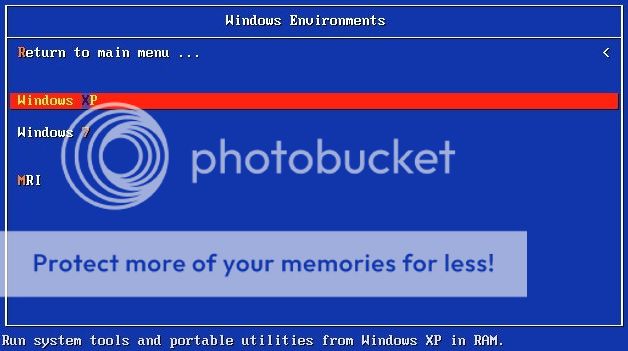
e).. From the next screen select Windows XP
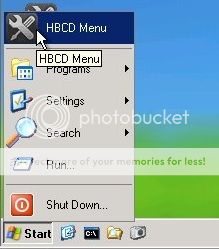
f)… When the Mini XP OS loads, click on the Start button and HBCD
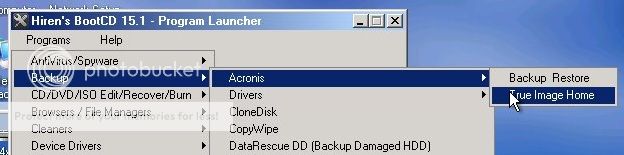
g)… From the HBCD select programs / Backup / Acronis / True image Home
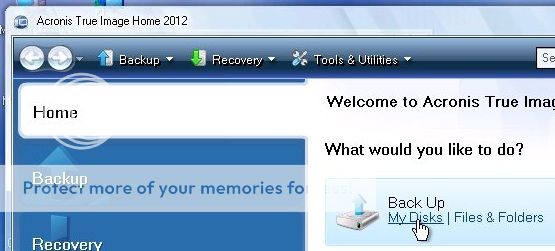
h).. When Acronis True image Home loads, click Backup My Disks
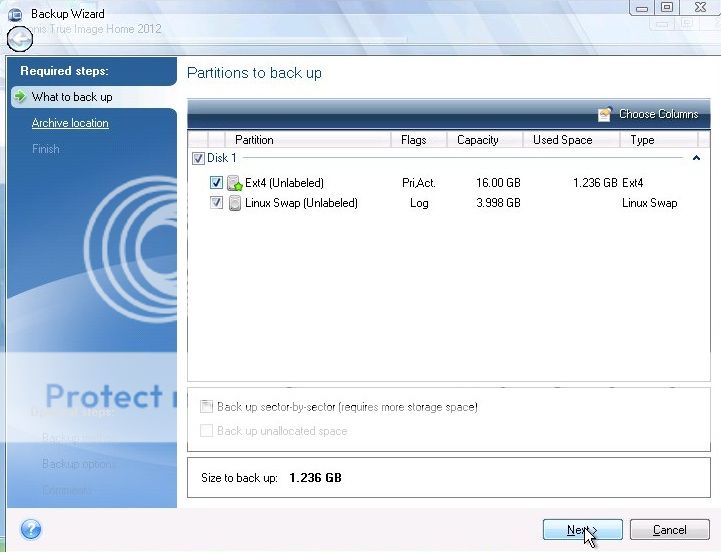
i).. From the next screen, Select your Ubuntu / Debian hard drive
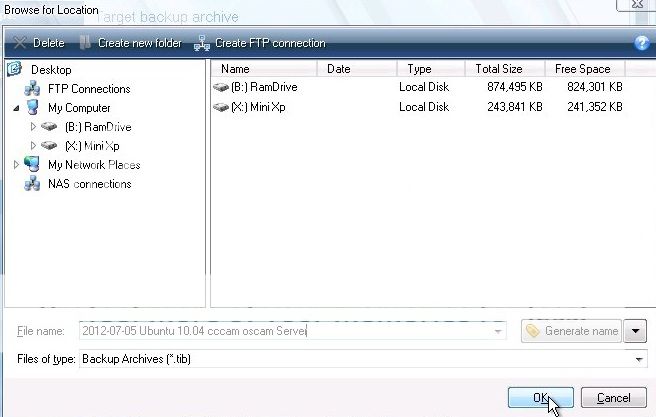
j).. From the new (Browse for location) window select where you want to store the backup, then in the File name box type a name for the Backup image. I usually use todays date followed by a description of the backup.
e.g.(2012-07-05 Ubuntu 10.04 Oscam Cccam)
k).. Select Create new backup archive and click Next
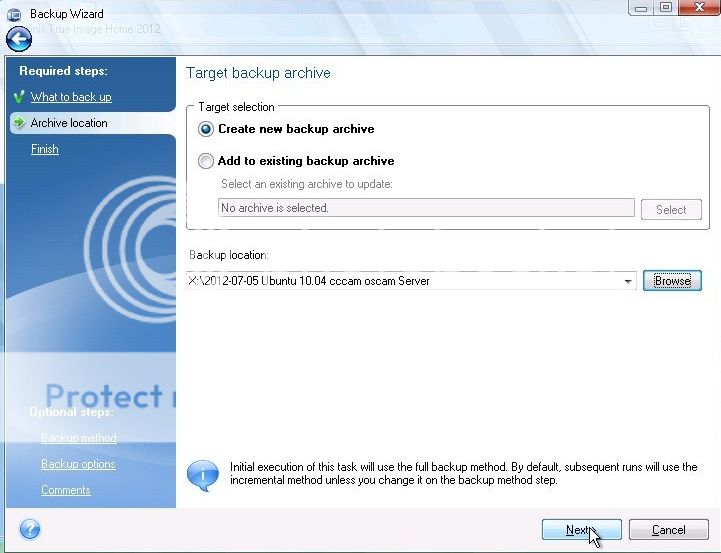
That’s it, your Backup has started, it should take no more than 1-2 minutes.
(Restoring the Backup)
Step 3 (Wiping the existing Linux Disk)
Follow Steps (a) through (f) from Step 2 above to start Hirens Boot CD then follow steps below
i).. From the HBCD select programs / Partition Boot MBR / Par4tition Wizard
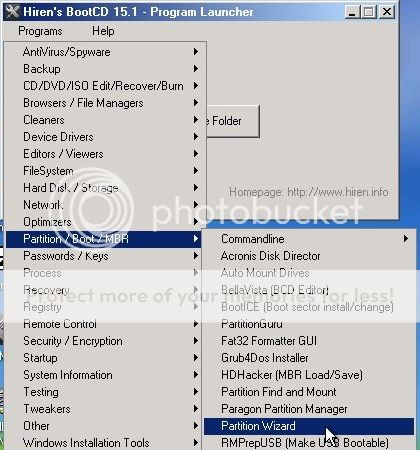
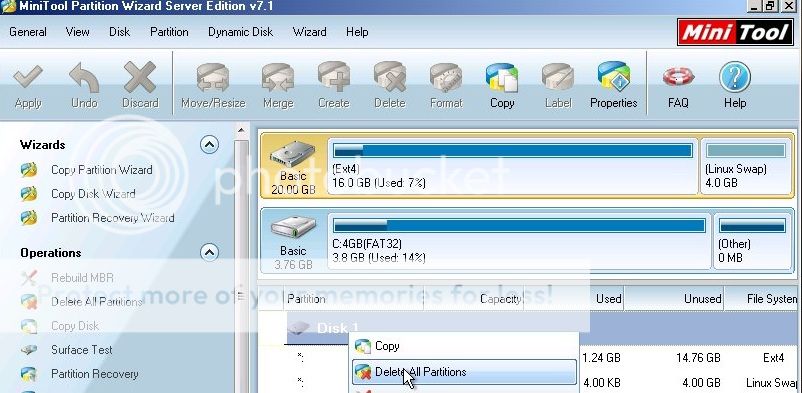
ii).. From the Partition Wizard Window, right click on your Linux Disk and Select Delete all Partitions
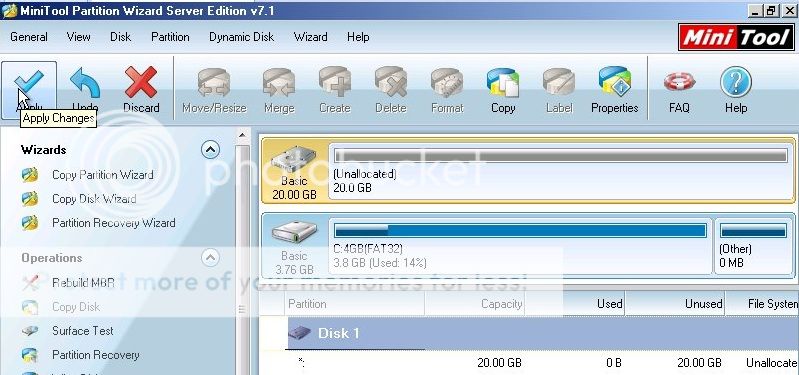
iii).. Next click Apply up the top left and Close down Partition Wizard
Step 4 (Restoring Backup to Wiped Disk)
i).. From the HBCD select programs / Backup / Acronis / True image Home
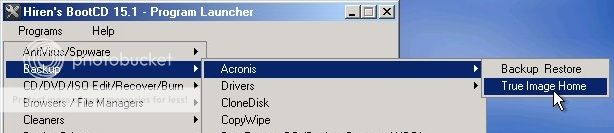
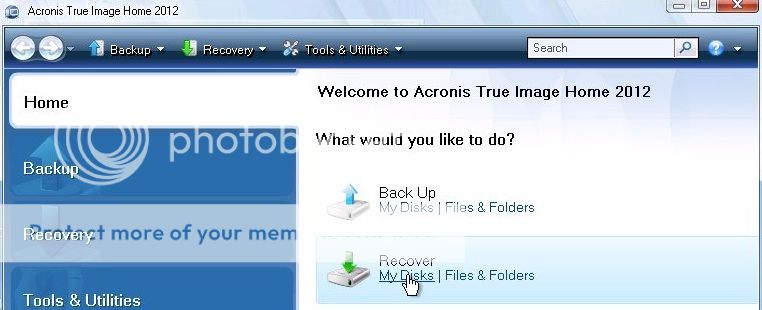
ii).. When Acronis True image Home loads, click Recover My Disks
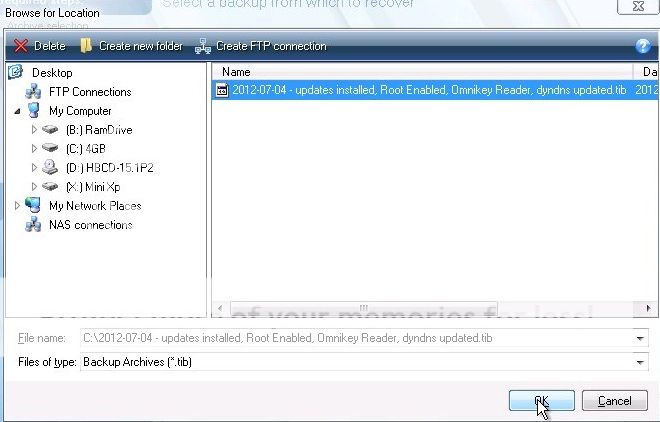
iii) Browse to the backup you want to restore and click OK
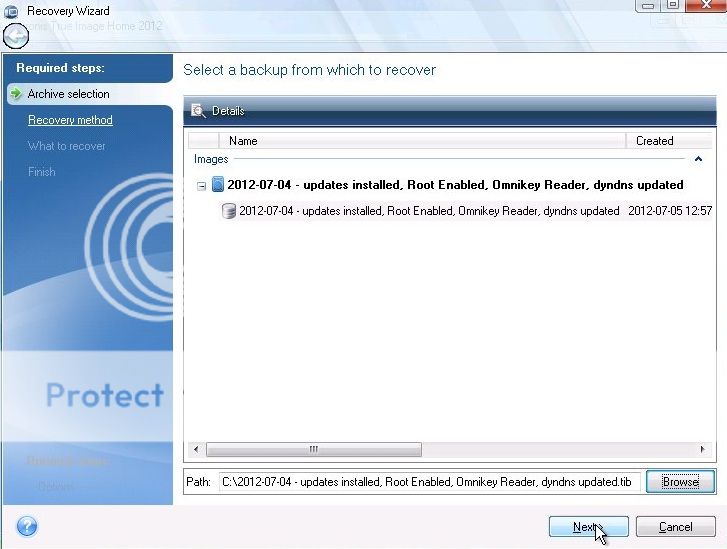
iv).. Click Next on this screen
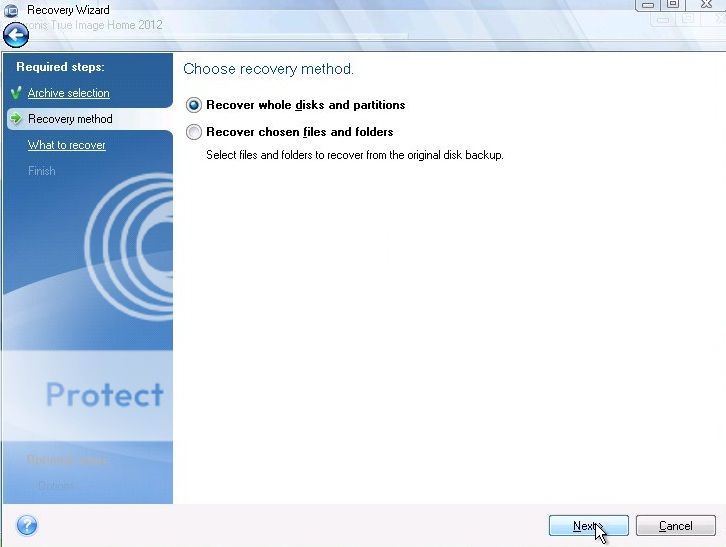
v).. Select Recover whole disks and partitions and click Next
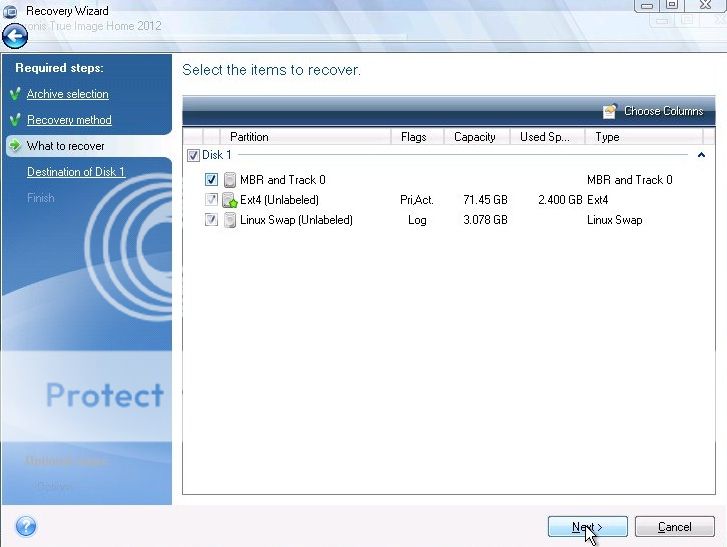
vi).. Select Disk 1 and make sure to select all partitions below it and click Next
That is the restore process started, again it should take no longer than 2 minutes.
Step 5 Reboot into restored Disk
1).. Remove the DVD
2).. Unplug the USB Backup drive/Key
3).. Click Start / Reboot
That’s it, your Linux System has been restored to the backed up image.
From time to time you might want to make big changes to your server, changes that might involve risking server stability. You might also want try another Operating System (Switch from Debian to Ubuntu or vice versa) or upgrade from 32Bit OS to 64 Bit OS. Most of these tasks involve the risk of big downtime. I am going to outline a few simple steps to keep downtime to an absolute minimum no matter how big the Upgrade or problem. This Tutorial might seem a bit long winded but it is aimed at the complete novice. After you have done this once, the whole process will take no more than 5 minutes.
Tools you will Need:
a)…Hiren’s Boot DVD 15.1 Restored Edition V 2.0 (Not the genuine version)
Click on the link below to open up a google search window with results for the Torrent file we need (If you wish, you can change “KAT” at the end to your preferred torrent site)
Make sure it is the restored edition, this edition includes all the commercial software that you don’t get with the official Hiren’s Boot DVD.
b)… Blank DVD
c)… USB Key or portable Hard Drive to store the Backup’s on. (I use 8GB USB Key)
Step 1 (Burning the DVD)
Within the folder you will find the “hbcd-15.1-Restored-V2.0-dvd-proteus.iso”. Insert your Blank DVD & burn this iso to a blank DVD with your favourite DVD burning software. (I use windows Disk burner included in Win7, Just right click on the file & click burn disk image) You now have your Hirens Boot DVD.
Step 2 (Creating the backup)
For this step you will need a keyboard, mouse & monitor connected to your Server.
a)… Put the DVD into your server & click CTR+ALT+DEL to restart Server
b)… Press F12 at boot logo Screen to select Boot Device (Might be different on different Systems)
c)… From Boot Device Menu Select CD\DVD Drive & hit enter (This will boot your server from the DVD)
d)… From the first screen, select Windows (Mini-XP, Mini7, MRI)
e).. From the next screen select Windows XP
f)… When the Mini XP OS loads, click on the Start button and HBCD
g)… From the HBCD select programs / Backup / Acronis / True image Home
h).. When Acronis True image Home loads, click Backup My Disks
i).. From the next screen, Select your Ubuntu / Debian hard drive
j).. From the new (Browse for location) window select where you want to store the backup, then in the File name box type a name for the Backup image. I usually use todays date followed by a description of the backup.
e.g.(2012-07-05 Ubuntu 10.04 Oscam Cccam)
k).. Select Create new backup archive and click Next
That’s it, your Backup has started, it should take no more than 1-2 minutes.
(Restoring the Backup)
Step 3 (Wiping the existing Linux Disk)
Follow Steps (a) through (f) from Step 2 above to start Hirens Boot CD then follow steps below
i).. From the HBCD select programs / Partition Boot MBR / Par4tition Wizard
ii).. From the Partition Wizard Window, right click on your Linux Disk and Select Delete all Partitions
iii).. Next click Apply up the top left and Close down Partition Wizard
Step 4 (Restoring Backup to Wiped Disk)
i).. From the HBCD select programs / Backup / Acronis / True image Home
ii).. When Acronis True image Home loads, click Recover My Disks
iii) Browse to the backup you want to restore and click OK
iv).. Click Next on this screen
v).. Select Recover whole disks and partitions and click Next
vi).. Select Disk 1 and make sure to select all partitions below it and click Next
That is the restore process started, again it should take no longer than 2 minutes.
Step 5 Reboot into restored Disk
1).. Remove the DVD
2).. Unplug the USB Backup drive/Key
3).. Click Start / Reboot
That’s it, your Linux System has been restored to the backed up image.
Subscribe to:
Posts (Atom)